> ## Documentation Index
> Fetch the complete documentation index at: https://docs.getlark.ai/llms.txt
> Use this file to discover all available pages before exploring further.
# QA reports
> Run an AI-driven QA audit of your product and get a structured report of issues.
## What is a QA report?
A QA report is an automated, end-to-end audit of your product. Instead of testing a single flow like a [workflow](/workflow-lifecycle), a QA report covers your entire product surface:
1. Lark's agent analyzes your product and identifies areas to test.
2. It tests each area one by one, logging issues it finds.
3. When testing is complete, it writes a summary with all issues ranked by priority.
This is useful when you want broad coverage fast — before a big release, as a periodic health check, etc.
QA reports must be enabled for your account. [Contact us](mailto:team@uselark.io) if you don't see the option in your dashboard.
## Creating a QA report
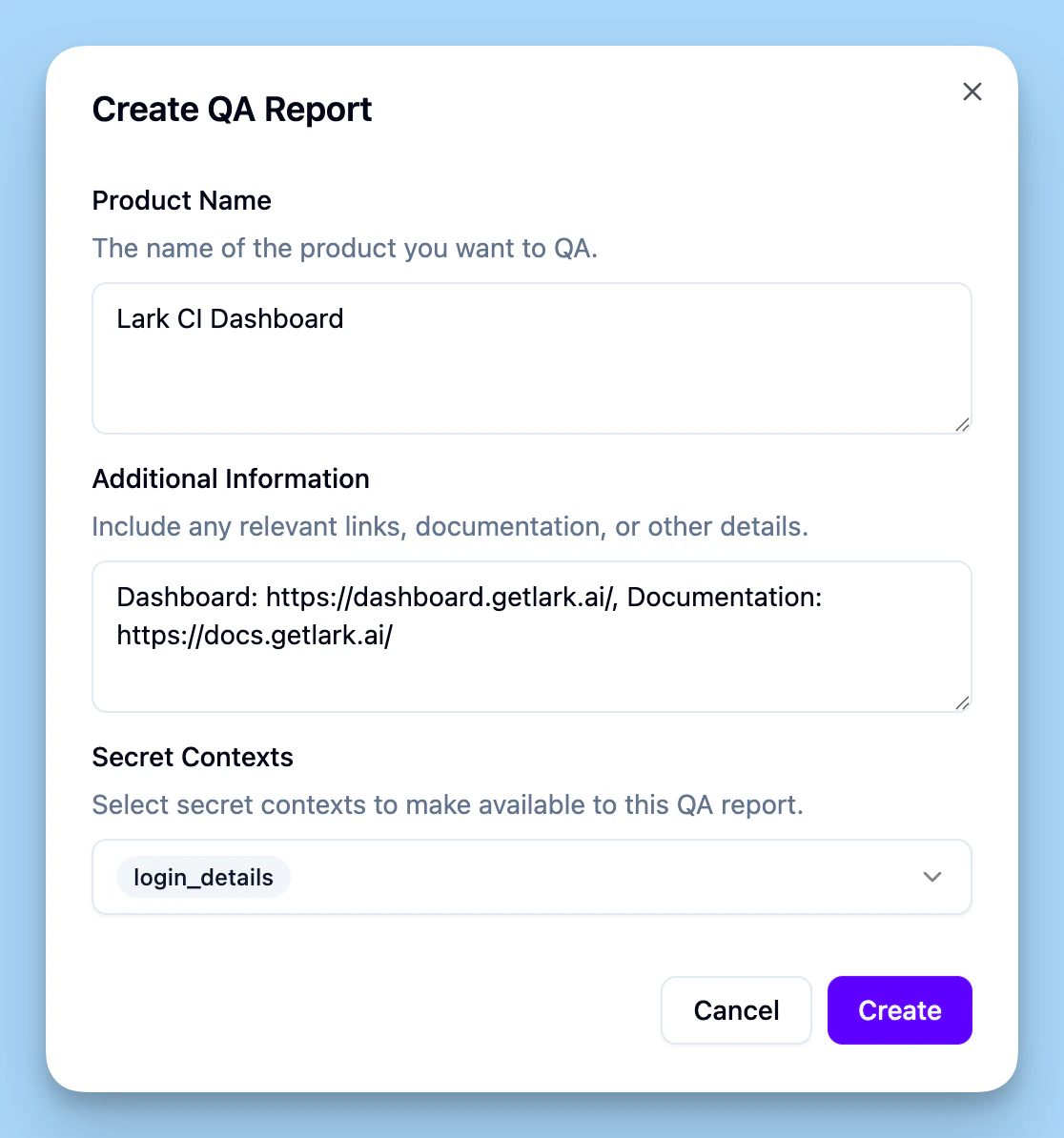 In the [dashboard](https://dashboard.getlark.ai/qa-reports), go to **QA Reports**. Click **Create report**.
Give the report a product name (e.g. "Acme Dashboard").
Add additional information like relevant links (developer documentation url, dashboard url, etc). You can also tell the agent what to focus on or what to skip.
If the product requires credentials to test (login details, API keys, etc.), attach one or more [secret contexts](/secrets). The agent uses these to authenticate during testing.
Click **Create**. Lark begins analyzing your product to identify testing areas.
## QA report lifecycle
Once created, a report goes through three phases:
1. **Identification** — The agent analyzes your product and proposes areas to test. When it finishes, the report pauses so you can review the proposed areas.
2. **Testing** — Click **Trigger testing** to start. The agent works through each area one at a time. You can pause and resume testing at any point.
3. **Complete** — All areas have been tested and a summary is generated.
## Test areas and issues
Each area the agent tests produces a test report containing:
* **Result** — Whether the area passed or failed.
* **Notes** — What the agent observed.
* **Issues** — A list of problems found, each with a title, description, priority, and type.
## Summary and reproducible tests
Once all areas are tested, Lark writes a summary of the findings. The summary is written for PMs and engineers: it highlights what passed, what failed, and what needs attention.
If the agent produced scripts to reproduce any of the issues it found, a **reproduction package** is available for download. This is a zip file containing test scripts and a readme that tell you how to run tests locally to verify the reported issues.
In the [dashboard](https://dashboard.getlark.ai/qa-reports), go to **QA Reports**. Click **Create report**.
Give the report a product name (e.g. "Acme Dashboard").
Add additional information like relevant links (developer documentation url, dashboard url, etc). You can also tell the agent what to focus on or what to skip.
If the product requires credentials to test (login details, API keys, etc.), attach one or more [secret contexts](/secrets). The agent uses these to authenticate during testing.
Click **Create**. Lark begins analyzing your product to identify testing areas.
## QA report lifecycle
Once created, a report goes through three phases:
1. **Identification** — The agent analyzes your product and proposes areas to test. When it finishes, the report pauses so you can review the proposed areas.
2. **Testing** — Click **Trigger testing** to start. The agent works through each area one at a time. You can pause and resume testing at any point.
3. **Complete** — All areas have been tested and a summary is generated.
## Test areas and issues
Each area the agent tests produces a test report containing:
* **Result** — Whether the area passed or failed.
* **Notes** — What the agent observed.
* **Issues** — A list of problems found, each with a title, description, priority, and type.
## Summary and reproducible tests
Once all areas are tested, Lark writes a summary of the findings. The summary is written for PMs and engineers: it highlights what passed, what failed, and what needs attention.
If the agent produced scripts to reproduce any of the issues it found, a **reproduction package** is available for download. This is a zip file containing test scripts and a readme that tell you how to run tests locally to verify the reported issues.